
Small Desk Organization
How to Work From a Dining Table Without Letting It Become a Permanent Office
If the dining table is your only practical work surface, organize it for two states: ready to work and fully returned to everyday use. Keep the portable core together, give it one nearby off-hours home, and treat repeated setup friction as a signal that the shared-table system may have reached its limit.
In This Guide
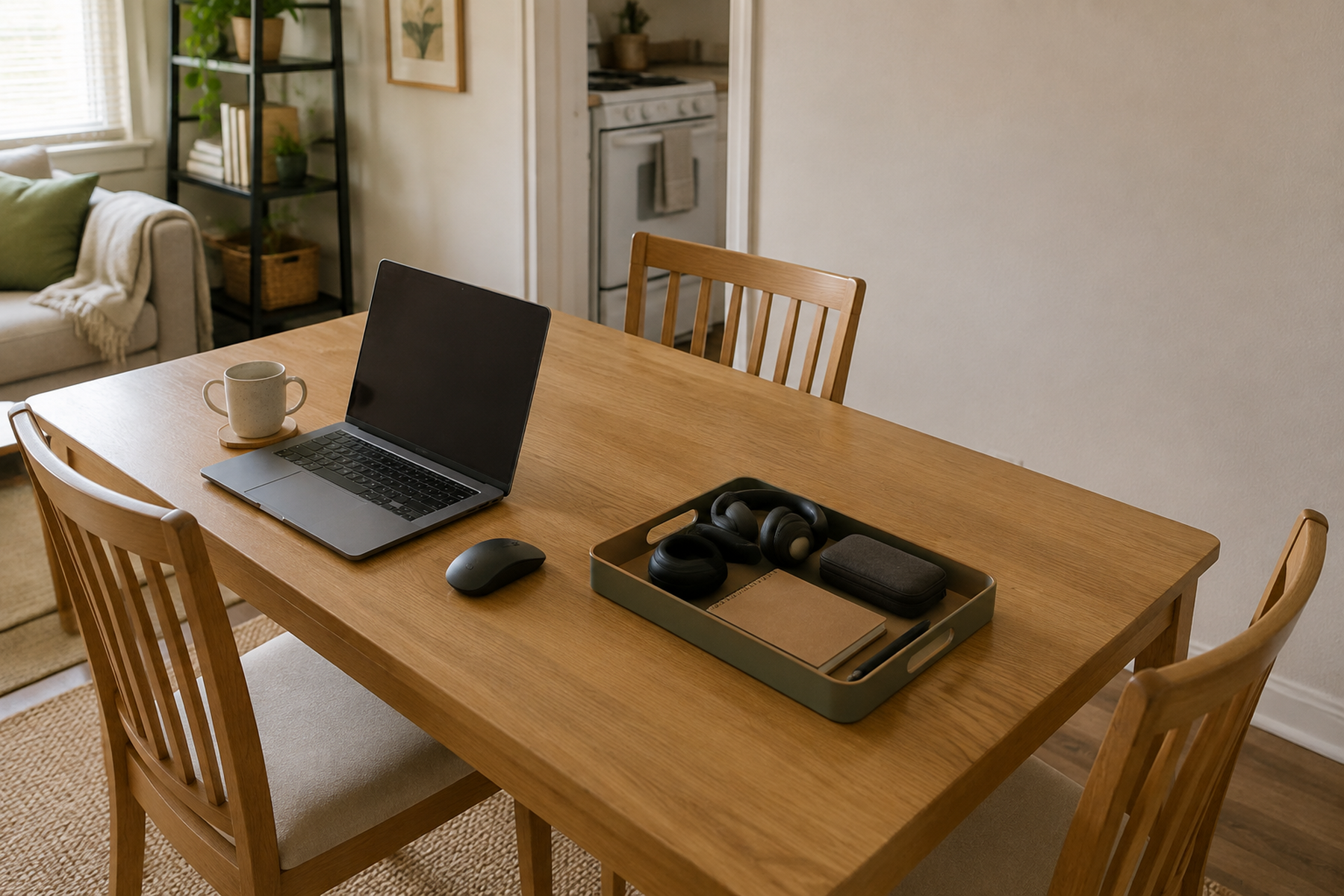
When the dining table also has to be the office, the storage problem is not finished when the laptop opens. The table still has another job after work, and every charger, notebook, headset, cable, stand, and monitor that remains behind makes that second job harder to recover.
Treat the shared table as a transition system rather than a permanent desk substitute. The best setup is not the one with the most office gear on the surface; it is the one that gives you the equipment you genuinely need, then lets the table return cleanly to meals, household tasks, or social use without a long rebuild in either direction.
Quick Answer
Design the Pack-Away System Before the Work Setup
A shared-surface workstation works only when the off-hours state is as intentional as the work state. Group what travels, keep support items close, and use the daily reset burden to decide whether the dining-table model still makes sense.
01
Separate the portable core from fixed equipment
Laptop, mouse, headset, notebook, and the cables you truly need can often move as one working set. A monitor, bulky dock, specialist hardware, or large paper workflow changes the equation because more of the workstation wants to stay put.
02
Give the portable core one nearby home
A caddy, tote, shallow bin, tray, cabinet compartment, sideboard shelf, or compact cart can work when the whole set leaves the table together and lands close enough that you will actually put it away.
03
Judge the system by both setup and reset
If returning the table to normal use requires too many separate moves, cable decisions, or storage trips, the shared table may be saving floor space at the cost of too much daily transition friction.
01
Separate Portable, Nearby, and Fixed Work Gear
Start by sorting the workstation by mobility, not by object type. The portable core is the gear that should be able to arrive and leave together: for example, a laptop, mouse, headset, notebook, pen, and the smallest necessary cable set.
Nearby support is anything you use during work but do not need sitting on the table all day—reference papers, extra charging accessories, backup notebooks, or lower-frequency office supplies. Those items can live in a nearby shelf, cabinet, sideboard, or cart instead of joining every setup.
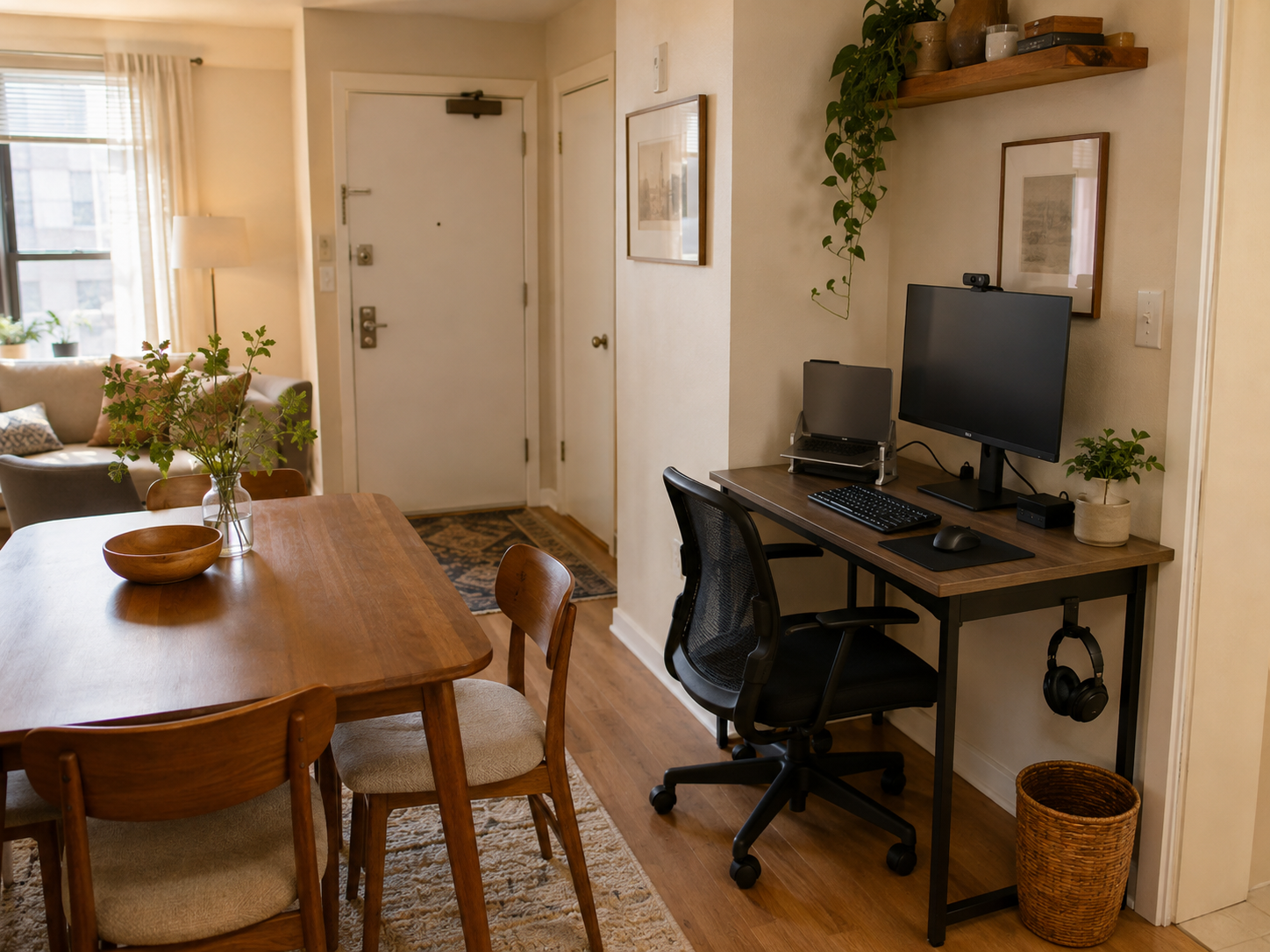
Fixed equipment is the part that resists the shared-table model. A monitor, full-size peripherals, specialist hardware, or a larger document workflow may be perfectly reasonable for the job, but it makes daily disappearance harder. Once you know which category each item belongs to, you can organize around the real transition instead of trying to make every piece equally portable.
Measure / Check First
Before buying a caddy, cart, stand, or compact desk, run the complete transition you actually need. The useful question is not whether the workstation fits on the table; it is whether the work state and the non-work state can both function without creating a new storage, cable, circulation, or physical-fit problem.
Test the Full Reset Before You Add Storage
01
Clear the table all the way
Return the surface to its real second job—meals, household tasks, hobbies, or social use. Notice which work items have no obvious destination and which pieces you are tempted to leave behind because moving them is inconvenient.
02
Trace every cable and storage trip
Follow the charger, adapters, headset, notebook, and other small gear from work position to off-hours storage. Several separate homes can create more friction than one portable kit and one nearby docking zone.
03
Check the working relationship
Sit in the actual chair and look at screen position, keyboard or input placement, reach, and the space around your legs and feet. Do not treat a surface as a good workstation merely because the computer physically fits on it.
There is no universal reset-time target, work-frequency threshold, or dining-table dimension that proves the arrangement works. Use the transition itself as evidence: if both states are easy to achieve and the workstation remains physically workable, the shared-table model is still doing its job.

02
Build One Portable Work Kit for the Daily Core
The strongest portable system groups the work session rather than assigning every accessory a separate storage home. A stable tray, caddy, tote, or shallow bin can hold the small items that arrive together, so starting work does not mean collecting a mouse from one drawer, a charger from another room, and a notebook from a third location.
Keep the kit limited to the real daily core. If every spare cable, office supply, document, and occasional accessory joins it, the container becomes another catch-all and loses the fast-reset advantage.
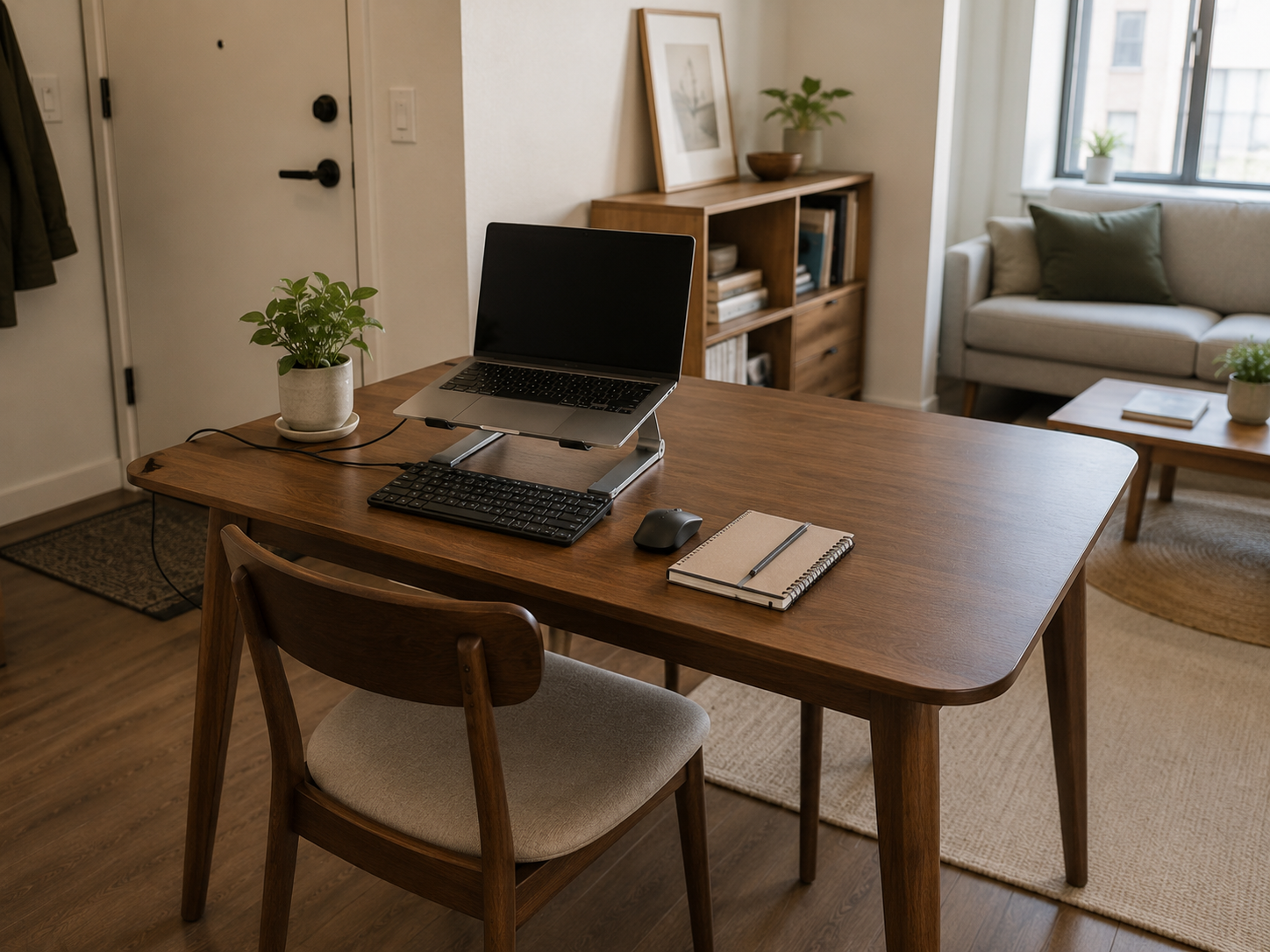
A foldable laptop support can also travel with the setup when it genuinely improves the working arrangement, but screen height is only one part of workstation fit. If raising the laptop makes regular typing awkward, the full screen-and-input relationship still has to be solved rather than assuming the stand fixed the problem.
03
Give the Work Kit One Nearby Off-Hours Home
A portable kit only works if it has somewhere convenient to go. The best docking zone is usually close enough that putting the workstation away feels like one normal transition rather than a storage project.
Use existing capacity first: a sideboard shelf, cabinet compartment, bookcase cubby, or another nearby storage zone may be enough. A compact rolling cart can work when no existing storage is available, but its footprint and parking position still have to respect chairs, doors, and the room’s main circulation path.
The dock should absorb work residue as well as the laptop. If the computer leaves but the charger, mouse, papers, and headset remain on the table, the surface has not truly reset. The goal is one clear off-hours destination for the whole portable work state.
Use / Skip
When a Shared Dining Table Is Still the Better Small-Space Choice
Use
Use — Use it when the workstation can genuinely disappear
A shared table remains efficient when the daily core is portable, the off-hours dock is close, the chair and equipment relationship is workable, and the table can return fully to its other role without a frustrating sequence of moves.
Skip
Skip — Skip it when fixed gear keeps winning
Move toward a separate slim or foldable desk when a monitor, larger peripherals, specialist equipment, heavy paper use, or repeated cable rebuilding makes the shared surface difficult to recover. That is not a failure of organization; it is a trade from daily transition cost to permanent floor cost.
04
Keep the Workstation Physically Workable
Space-saving storage should not lock you into an awkward workstation. NIOSH’s current office guidance emphasizes avoiding over-reaching and awkward postures, while OSHA’s workstation guidance recommends keeping the monitor in front and frequently used input devices within easy reach.
That means a dining table is neither automatically bad nor automatically suitable. The useful check is the relationship among the surface, chair, screen, keyboard or other input devices, back and foot support, and the tasks you perform regularly.
Clamp-on or adhesive accessories can sometimes reduce tabletop clutter, but they are not default renter solutions. Clamp fit depends on the exact table edge and product, and 3M Command’s current instructions show that adhesive products have product-specific load, surface, application, and removal conditions.
What Not to Do
Don’t Optimize the Reset Around a Workstation That Does Not Fit
A clever caddy cannot compensate for a setup that forces awkward reaching, leaves the screen in a poor position, blocks chairs or circulation, or depends on an accessory that does not fit the table safely. Storage efficiency is a secondary win; the workstation still has to function while you are using it.
05
Know When the Shared Table Has Reached Its Limit
A separate desk becomes more rational as the work setup becomes less portable. There is no universal number of workdays or reset minutes that marks the cutoff, so look at the pattern instead: how much fixed gear you need, how often the table must change roles, how many pieces refuse to disappear, and whether a real floor zone exists for a compact workstation.
A slim freestanding desk trades daily setup effort for a permanent desk-and-chair footprint. A freestanding folding desk can reduce the off-hours footprint, while a wall-mounted fold-down desk can reduce floor use further but moves into installation and lease-permission territory.
If you consider hideaway furniture, audit what actually hides. A folding surface solves only part of the problem if the monitor, chair, cables, and peripherals still need separate homes. Choose the dedicated option only when it reduces the whole transition burden, not because the word “compact” or “hideaway” makes it sound automatically better for a small apartment.
Closing Decision
Make the Table Easy to Give Back
A dining table can be a practical home office when the workstation is designed to leave as deliberately as it arrives. Keep the daily core portable, give it one nearby docking zone, simplify the cable and accessory path, and make physical workstation fit a non-negotiable check. If fixed equipment keeps turning the temporary office into permanent furniture, a separate compact desk may be the more efficient use of space. The right system is the one that supports work without permanently taking the shared surface away from the rest of the home.
RELATED GUIDES
What to Read Next
NEXT GUIDE
How to Organize Paper on a Small Desk Without a Filing Cabinet
Useful when a temporary workstation also needs a paper system that can clear away quickly.
GUIDE
How to Use Two Laptops on a Small Desk Without Losing Work Surface
Extends the shared-surface problem to a device-heavy setup where usable work area is limited.
GUIDE
How to Create a Multi-Device Charging Zone on a Small Desk
Useful for consolidating charging so loose devices and cables do not keep the work surface permanently occupied.