
Small Desk Organization
How to Use Two Laptops on a Small Desk Without Losing Work Surface
Make two laptops share a compact desk by deciding which laptop gets the active workstation position, then protect the keyboard, mouse, cable access, and task space around each device’s real current role.
In This Guide
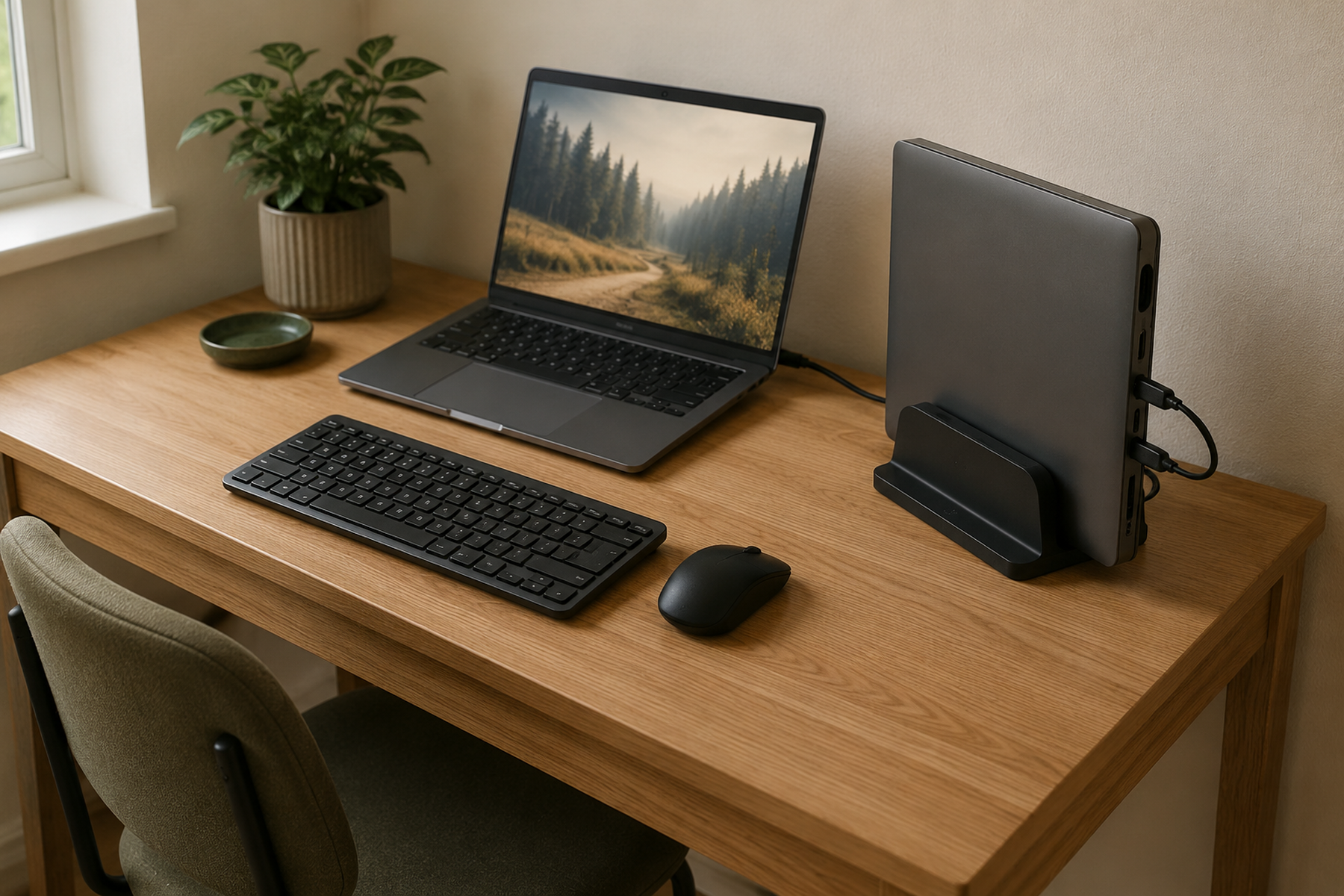
Two laptops can consume a small desk long before either computer is doing useful work. The second machine brings another screen, keyboard deck, charger, cable path, and reach requirement—even when you only touch it a few times a day.
Treat each laptop as an operating state instead of reserving a full open footprint for both by default. One may need to stay open and visible; the other may only need to stay connected, easy to unplug, vertically parked, or close enough to bring out when required.
Quick Answer
Make Each Laptop Earn the Space It Uses
On a small desk, let one laptop hold the active workstation position while the other uses the smallest practical parked state. Keep the more portable machine easy to grab, protect the keyboard-and-mouse task zone first, and add hardware only after those priorities are solved.
01
Decide which laptop gets the active workstation position
When only one laptop needs the prime screen-and-input position at a time, let that machine stay open and active while the other occupies a smaller parked state. The roles can swap whenever the work changes. Keep two built-in laptop displays open only when the workflow genuinely requires simultaneous visibility or direct interaction.
02
Give the portable laptop the easiest exit
The computer that leaves the desk most often should be easiest to grab, unplug, and power on. A more stationary machine can accept a rear, vertical, or nearby secondary position.
03
Protect the task zone before you add hardware
Keep the keyboard, pointing device, and immediate work area usable first. Then solve switching, charging, stands, clamps, or a side surface without burying ports or blocking device ventilation.
01
Decide Which Laptop Gets the Active Workstation Position
Start with the workday, not the desk accessories. Ask which laptop actually needs the prime workstation position right now—the open screen closest to the shared keyboard, mouse, and immediate task zone.
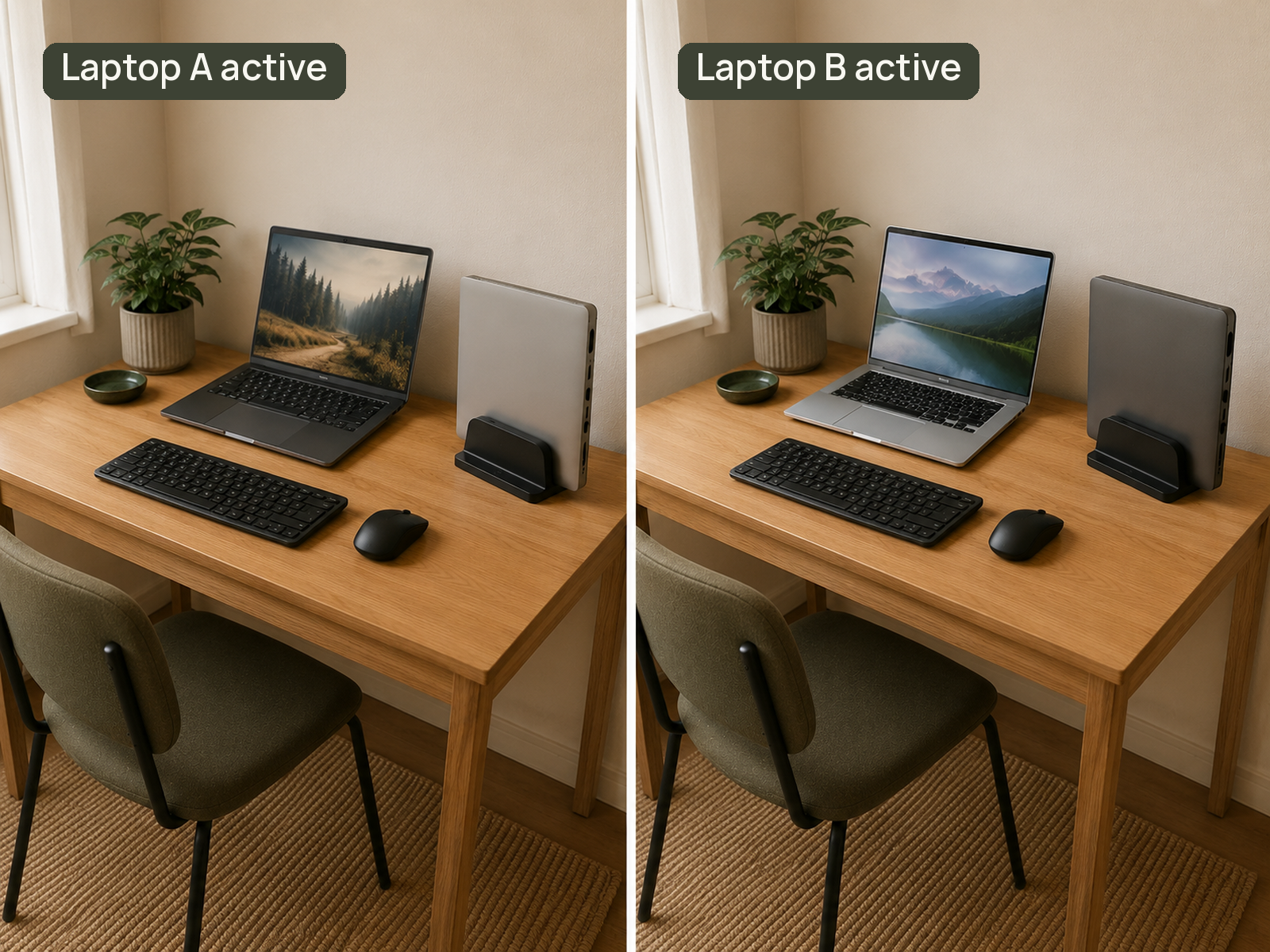
In many two-laptop setups, one machine is active while the other only needs to stay connected, reachable, charged, or ready to swap in. That makes one-active-at-a-time the normal space-saving pattern: one laptop stays open in the prime position while the second occupies a smaller parked state.
The roles can change during the day. If Laptop A is handling the main task in the morning and Laptop B becomes the priority later, the workstation can swap active and parked positions without permanently reserving two full open footprints.
Keep simultaneous visibility of two built-in laptop displays as a conditional exception, not the default assumption. If the workflow genuinely requires both to stay open, treat that as a different layout problem with higher surface demands rather than the normal model for every two-laptop desk.
02
Give the Portable Laptop the Easier Exit
When one laptop regularly leaves the desk, portability should influence placement as much as footprint.
Keep the grab-and-go machine where you can reach it directly and release its normal connections without moving another device first. A compact arrangement is not successful if every departure requires lifting a stand, reaching behind a monitor, or fishing a charging plug out of a cable bundle.
The more stationary laptop can accept the higher-friction position: vertically parked when its screen is not needed, closed in a rear zone when depth allows, or placed on a nearby secondary surface when the desk itself is too narrow.
Also preserve the controls you actually use. If a power button, fingerprint sensor, charging port, or dock connection becomes inaccessible in the parked state, the layout is trading visible neatness for daily friction.
03
Protect the Keyboard, Mouse, and Task Zone
The highest-value part of a small desk is the surface where you actually type, point, write, and place the current task. Do not sacrifice that zone simply to keep two laptop bases on the desktop.
For prolonged laptop typing, the U.S. Occupational Safety and Health Administration’s Computer Workstations Purchasing Guide recommends an external keyboard and input device. That does not create one universal workstation layout, but it reinforces the practical small-desk priority: leave a stable keyboard-and-pointer zone instead of squeezing it around hardware.
If one laptop is raised, parked, or connected to another display, use the recovered surface for the primary input zone rather than immediately filling it with another organizer. A notebook or occasional paper task also needs somewhere to land.
When both built-in screens must stay visible, an external keyboard and mouse can let the laptop bases move farther back or to the sides. If that still leaves no comfortable task area, the problem is no longer just organization; the required setup is larger than the available surface.
04
Place the Secondary Laptop According to Its State
The secondary laptop’s state determines which footprint-saving move is actually useful.
If its screen is not needed
Vertical parking can convert a wide laptop base into a narrow edge footprint. Use a stable stand that fits the actual device, keeps needed ports reachable, and does not pinch the chassis. Treat vertical placement as a space-saving form factor—not as automatic permission to operate every laptop closed and upright.
If it stays closed but must remain easy to reach
A rear desk zone can work when the desk has spare depth and the laptop is not trapped under a monitor stand or another device. This preserves width but spends depth, so check whether it pushes the keyboard or active laptop too close to the front edge.
If its built-in screen must stay visible
Raise or offset one laptop rather than stacking bases in the same plane. The goal is to preserve viewing and input space without creating an unstable tower or forcing a keyboard into the last few inches of the desk.
If it is only needed occasionally
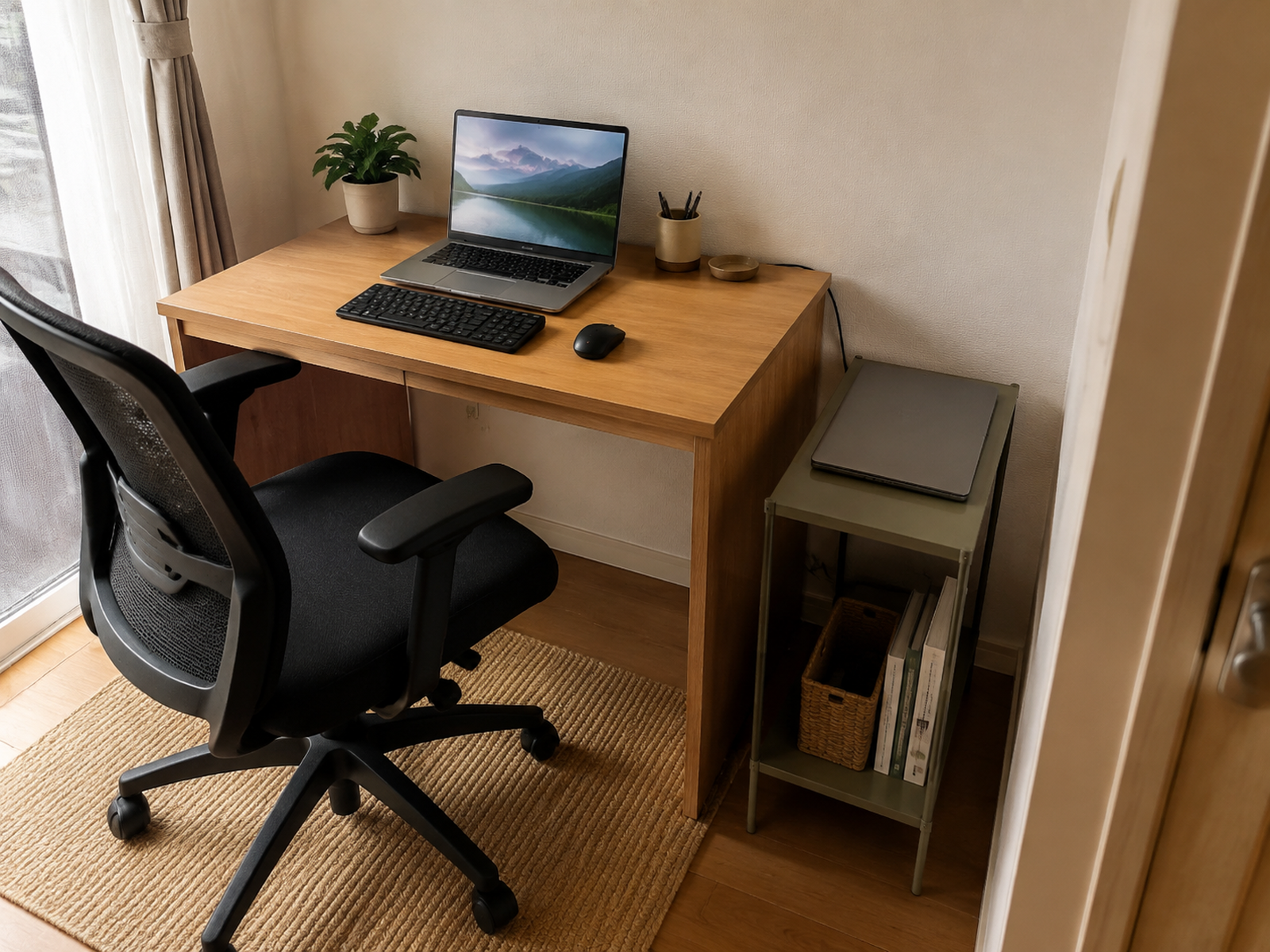
A nearby narrow shelf, small cart, or other genuine residual zone can remove the second machine from the desk entirely. Keep the device easy to retrieve, and do not create a cable bridge across a walkway just to protect desktop space.
05
Reduce Duplicate Inputs Before You Add More Hardware
Moving one laptop into a smaller footprint will not solve much if the desk still carries two keyboards, two mice, duplicate dongles, and several switching devices.
A multi-device keyboard or mouse can reduce duplicate input hardware when both computers support the chosen connection method. A KVM can go further by letting compatible computers share a keyboard, monitor, and mouse, but it should solve a real switching problem rather than become another box on an already crowded desk.
Keep the hardware roles separate. A docking station can consolidate one laptop’s display, USB, network, and charging connections, but it does not automatically switch those connections between two computers. A KVM can reduce switching friction, but it does not make two open laptop bodies physically smaller.
Use the simplest setup that removes a repeated annoyance. If switching one monitor input plus one multi-device keyboard is already easy, adding a larger switching system may create more cables and compatibility checks than the desk needs.
06
Keep Daily Cable Endpoints Reachable
Cable concealment and cable access are different jobs. A cable that looks tidy but has to be dug out several times a day is poorly organized for a two-laptop workflow.
Separate connections into three groups: permanent connections that can stay routed, daily-switch connections that need a deliberate hand-access point, and grab-and-go connections that should release quickly when the portable laptop leaves.
Give frequently handled connectors a predictable parking place near the device they serve. Keep enough slack for normal movement without creating loops across the work surface, and avoid routing power or data cables through pinch points simply to make them disappear.
If a KVM, dock, or monitor input is part of the setup, place its control or host connection where the switching action can happen without moving another computer. The best cable route follows the real daily sequence, not the cleanest still photo.
07
Verify Ventilation, Closed-Lid Use, and Stand Fit
A powered laptop needs operating conditions, not just storage space. Do not treat it like a book that can be tucked into any narrow slot.
Apple’s current Mac laptop guidance says to use the computer on a stable work surface that allows good ventilation and not to obstruct ventilation openings. Dell’s current overheating guidance similarly recommends a hard, flat, non-cloth surface and warns that fabric or paper can block fan intake. Exact vent locations and approved operating positions still vary by model.
Closed-lid operation is also manufacturer- and model-specific. Apple, for example, documents closed-lid use with an external display under defined conditions, including power and external input devices. That is evidence for supported Mac configurations—not a rule that every laptop should run closed in a vertical stand.
Before using a stand, check the real laptop thickness, stability, contact points, port locations, and the stand manufacturer’s fit guidance. If the machine must stay powered while parked, verify that the chosen orientation does not obstruct its intended airflow.
08
Know When the Desk Is Actually Too Small
Clamp arms and under-desk mounts can move hardware away from the center of the desk, but they are conditional tools, not automatic renter-friendly upgrades.
Before clamping or mounting anything, verify the hardware load rating, desk thickness and edge geometry, whether an apron or frame blocks the clamp, the desktop material, and the clearance the device still needs. A no-drill clamp can avoid holes while still being wrong for a fragile or incompatible desk. Drilled under-desk mounts and wall shelves belong in an installation- or lease-specific branch.
Then apply a stop rule. If your real work requires two open laptop screens, an external monitor, a keyboard, a mouse, paperwork, and frequent direct access to both computers, the setup may genuinely exceed the desk. A narrow adjacent surface or a larger desk can be more functional than precarious stacking, inaccessible ports, or permanently sacrificing the task zone.
What Not to Do
Avoid These Two-Laptop Desk Shortcuts
- Do not keep both laptops open just because they fit. If one built-in screen is rarely useful, the second open footprint is spending work surface without earning it.
- Do not run a laptop closed or vertical without model-specific verification. Ventilation, closed-lid support, power requirements, and approved operating orientation vary by device.
- Do not hide the connections you touch every day. Grab-and-go and daily-switch cables need intentional access points, not maximum concealment.
- Do not block vents with sleeves, fabric, paper, or a cramped cubby. Powered operation needs the airflow conditions defined by the device manufacturer.
- Do not assume a no-drill clamp is automatically safe for the desk. Clamp geometry, desktop construction, load, and surface protection still need to be checked.
Closing Decision
Make Each Laptop Pay Only for the Space It Actually Needs
A small desk works better when laptop footprint follows actual use. Keep the machine you touch and move most often easy to reach, let a secondary device occupy a smaller state when its screen is not needed, and protect the keyboard, mouse, and task zone before adding stands or switching hardware.
If both laptops truly need full simultaneous access, accept the geometry instead of hiding it. Use height, a nearby residual surface, or a larger desk when necessary—and verify ventilation, closed-lid behavior, stand fit, and clamp compatibility before a space-saving setup becomes the new source of friction.
RELATED GUIDES
What to Read Next
NEXT GUIDE
How to Manage Cables on a Small Desk Without Drilling
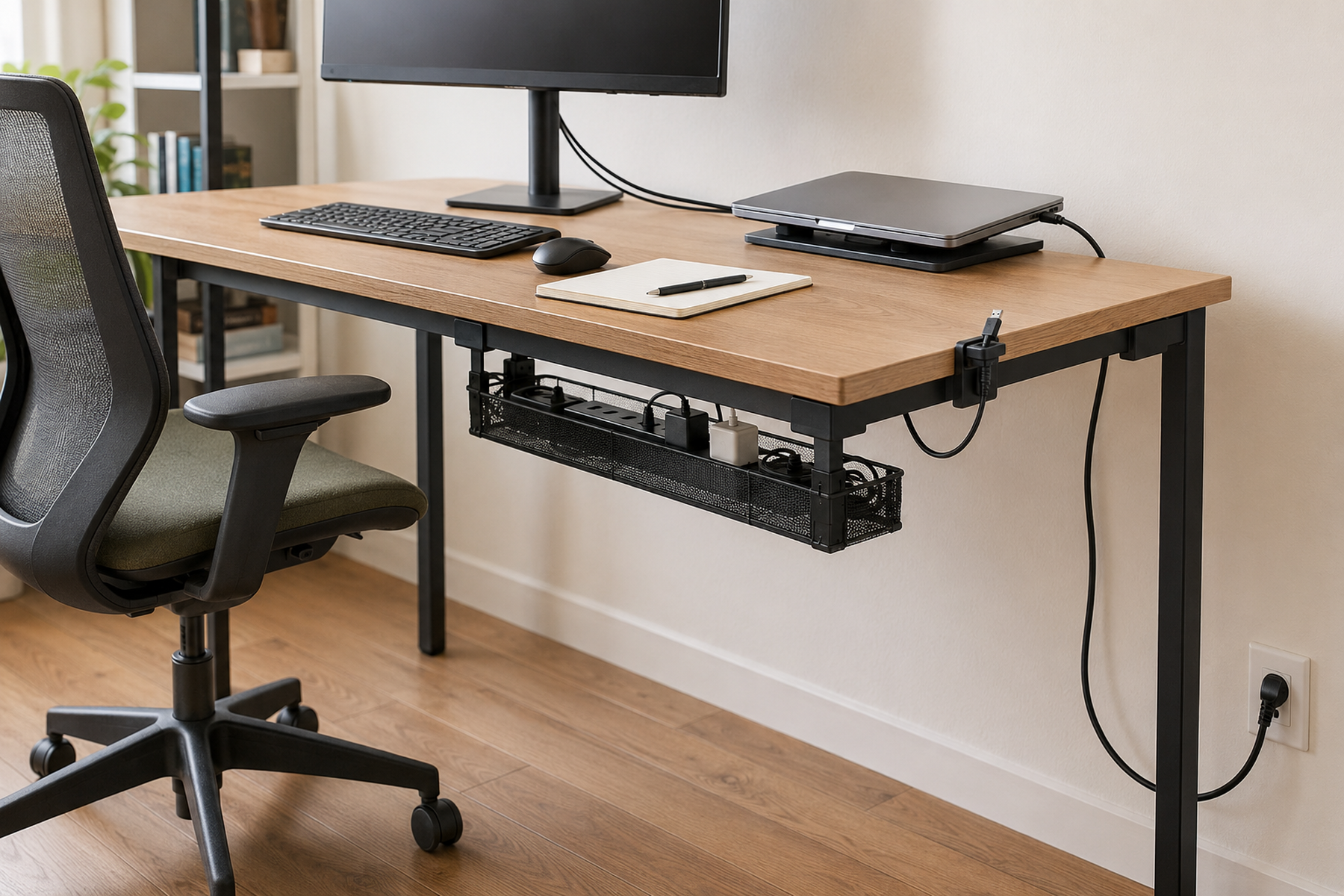
Once the two laptops have stable roles and positions, use this guide to route the remaining power and data cables without turning daily-access connectors into buried clutter.
GUIDE
How to Use a Monitor on a Shallow Desk Without Losing Usable Depth
Use this next if one external display is part of the two-laptop workflow and the monitor itself is consuming too much of a shallow desk.
GUIDE
How to Move a Printer Off a Small Desk Without Losing Access
If the desk is still crowded after the laptop layout is simplified, this guide helps move an intermittent-use printer off the primary work surface while keeping it practical to use.