
Small Desk Organization
How to Set Up Dual Monitors on a Small Desk Without Losing Work Surface
Decide which screen is primary before you choose the hardware: measure the real panel widths, viewing distance, desk edge, wall clearance, and usable work zone, then choose the simplest layout or mount that keeps the main display centered without sacrificing keyboard, mouse, writing, or renter-safe installation.
In This Guide
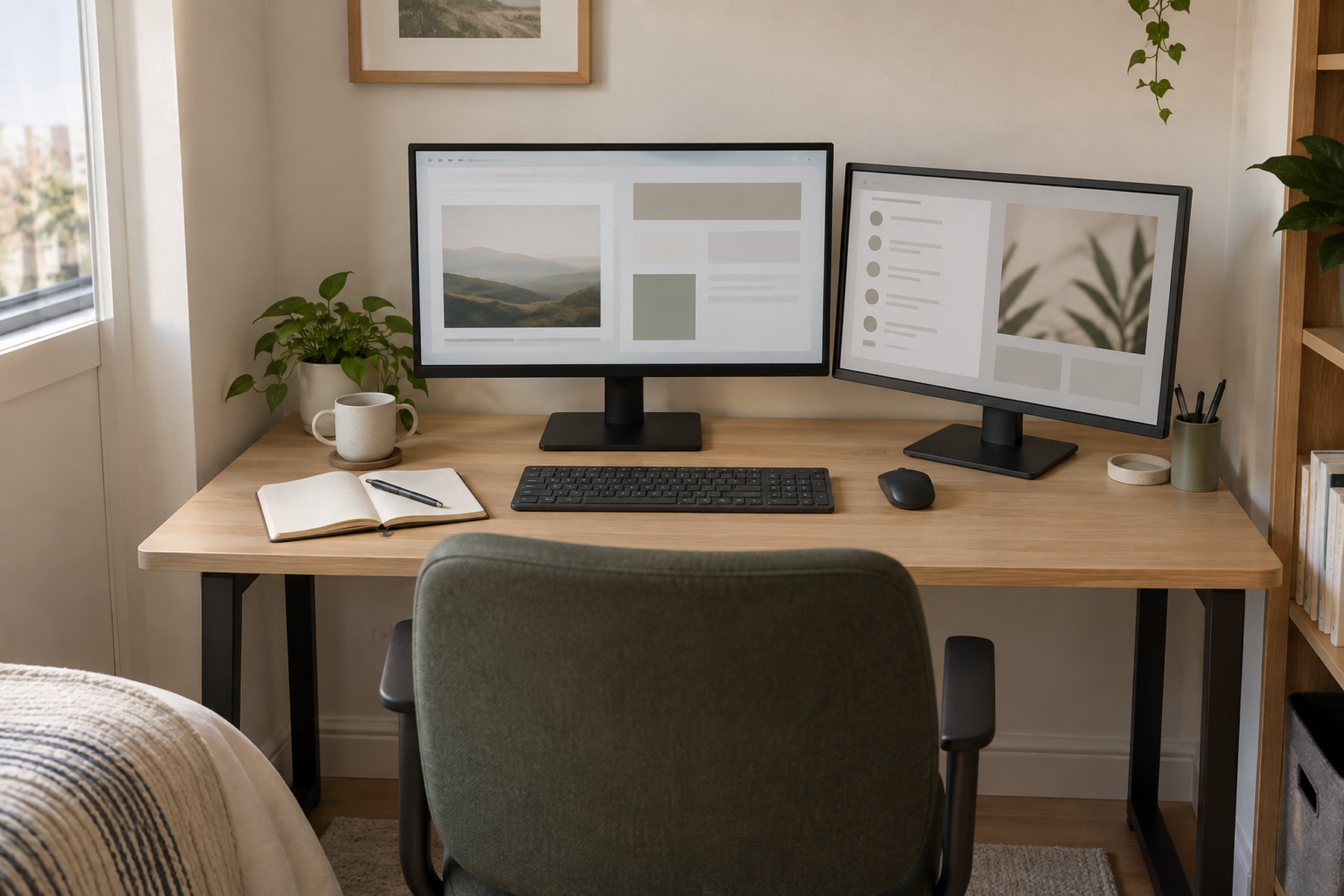
Two monitors can fit across a small desk and still create a poor workstation. Factory stands can push the screens too far forward, equal-looking screens can place the user on the center bezel when one display does most of the work, and a monitor arm can fail because the desk edge, wall clearance, VESA pattern, or display weight does not match the hardware.
Treat the setup as an operating-geometry problem rather than a screen-count goal. The successful layout keeps the primary work directly ahead, preserves a readable viewing distance and comfortable head movement, and leaves enough desk surface for the keyboard, mouse, writing, and other daily tasks.
Quick Answer
Choose the Screen Roles Before the Mount
The same two monitors can need different layouts depending on whether one is the main work surface or both are used equally. Decide the role first, then solve width, depth, mounting, and work-surface constraints around that use pattern.
01
Center the display that does most of the work
OSHA says the primary monitor should be directly in front when multiple monitors are used. Put the true main screen on the user’s centerline instead of centering the body on the gap for visual symmetry.
02
Measure actual panel and desk geometry
Use physical monitor width and height, stand footprint or VESA interface, desk depth, desk-edge construction, underside clearance, and wall distance—not diagonal screen size alone.
03
Preserve the work surface after the screens fit
A dual-monitor setup has failed if the keyboard, mouse, notebook, or writing zone becomes cramped, or if moving the screens farther back requires an arm that cannot safely attach or articulate.
01
Decide Whether One Monitor Is Primary
Start with how the screens are used during a normal workday. If one display holds the main application most of the time, make it the primary monitor and place it directly in front of the user.
OSHA’s multiple-monitor guidance supports this hierarchy: the primary display should be directly ahead, with other monitors beside it. That is a stronger rule for a small desk than centering the user on the bezel simply because the two panels look balanced.
If the workload is genuinely split evenly between both displays, side-by-side placement becomes more appropriate. OSHA says equal-use multiple monitors should sit next to each other within a comfortable viewing angle with minimal head movement.
This role decision also determines what can shrink. A secondary display used for chat, reference, email, music, or controls does not automatically need to match the primary monitor in size or orientation.
02
Measure the Desk, Panels, and Viewing Distance Together
Measure the desk where the monitors actually sit: usable width at the rear, front-to-wall depth, distance from the rear edge to the wall, desk thickness, underside obstructions, and the surface area that must remain for input devices and writing.
Then measure each monitor’s physical width and height, not only its diagonal. Include the factory-stand footprint if the stand will stay, or the VESA pattern and monitor weight without the stand if an arm is being considered.
OSHA recommends a viewing distance that allows text to be read with the head and torso upright and gives a generally preferred eye-to-screen range of about 20–40 inches. The exact comfortable distance still depends on text size, vision, scaling, and the work being done.
Also check height. OSHA says the top of the screen should be at or slightly below eye level for typical viewing, while noting that users with bifocals or progressive lenses may need different positioning.
Measure / Check First
Before buying an arm or committing to a dual-screen layout, test the complete viewing and mounting envelope with the real desk, real monitors, and real wall position.
Check Viewing Distance, Mount Compatibility, and Work-Surface Loss First
01
Screen role, distance, and centerline
Sit in the normal working position, place the primary screen directly ahead, and check whether both screens remain readable without leaning forward, craning upward, or repeatedly rotating the head.
02
Desk edge, underside, and rear clearance
Measure desktop thickness, edge shape, aprons, drawers, cable trays, frames, and the space behind the desk. A clamp or articulated arm must fit the attachment zone and still move without hitting the wall.
03
Monitor weight, interface, and remaining work zone
Verify each display’s weight without its stand, VESA or proprietary interface, the mount’s per-arm limits, and the keyboard, mouse, notebook, or writing area that remains after the screens are positioned.
If the two screens fit only by sitting too close, shifting the primary off-center, eliminating the work surface, or using a mount that does not match the desk and monitors, reject the layout before optimizing cables or aesthetics.
03
Test the Factory Stands Before Adding Mounting Hardware
Factory stands are the lowest-intervention baseline. If both monitors can maintain a comfortable viewing distance, preserve the main work zone, and keep the primary screen on the centerline, there may be no reason to add mounting hardware.
The problem is often depth rather than width. A stand base can consume the rear half of a shallow desk and push the panel forward even when the monitor itself is not unusually large.
Use an asymmetric layout when one display is primary: center the main screen and angle the secondary inward from the side. Keep both screens close enough together that the secondary can be checked without a large repeated head turn.
If the stand footprints are what destroy the keyboard, mouse, or writing area, move to a mounting solution only after the desk and monitor compatibility checks are complete.
04
Use Equal Side-by-Side Screens Only When the Work Is Truly Split
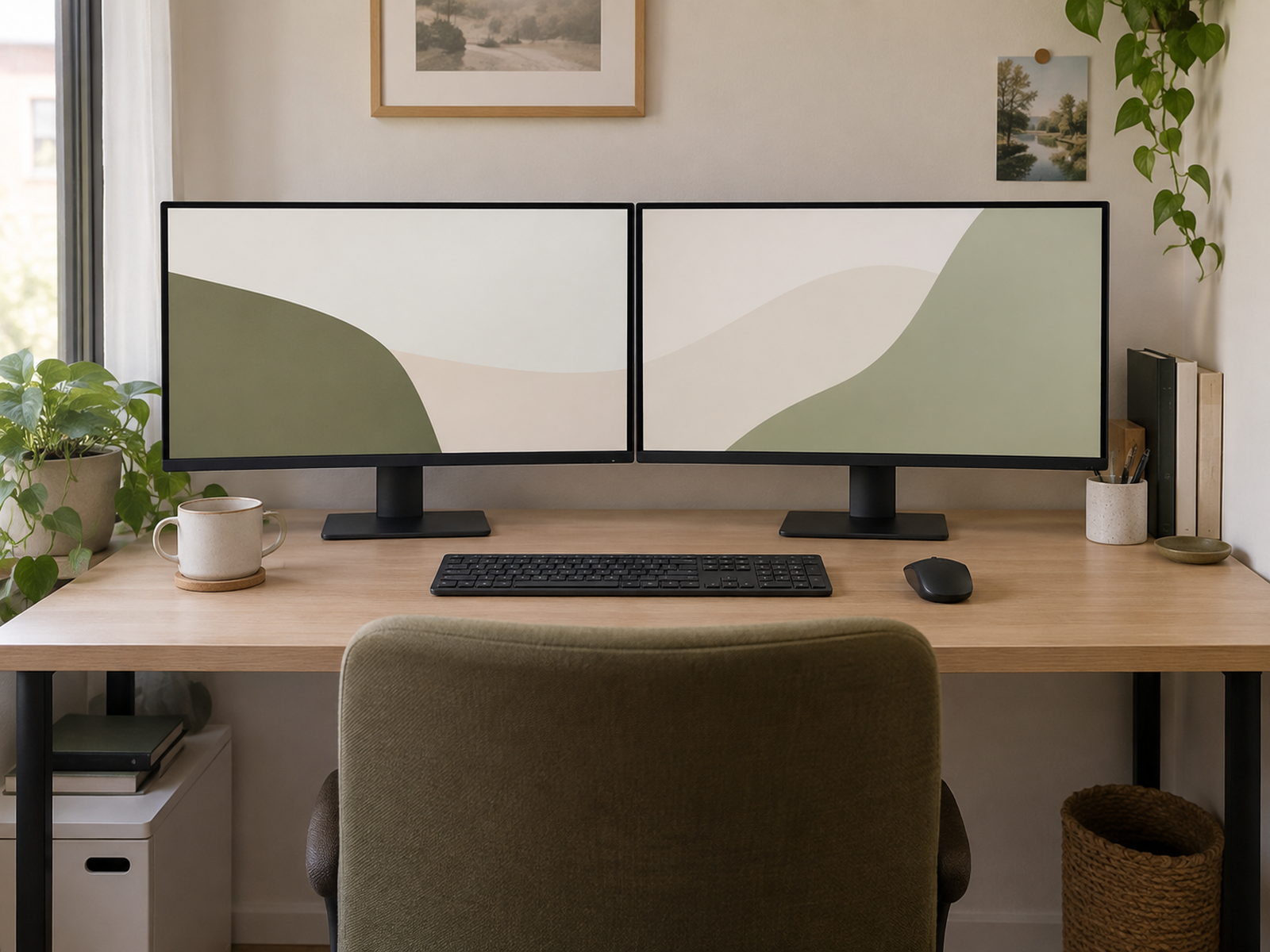
Two equal landscape monitors can work well when the user spends comparable time on both and the total panel width fits the desk without forcing extreme angles.
In that case, the screens can sit next to each other with the center of the combined viewing area close to the user’s forward line of sight, consistent with OSHA’s guidance for evenly used multiple monitors.
Do not force equal symmetry onto a primary/secondary workflow. If one screen carries the main application, centering the user on the gap makes the primary display permanently off-axis.
Also check the actual screen widths. Two monitors marketed with the same diagonal size can have different bezel, stand, and physical-width geometry, and the diagonal alone does not tell you whether the pair fits the desk.
05
Rotate a True Secondary Monitor to Portrait When the Workflow Benefits
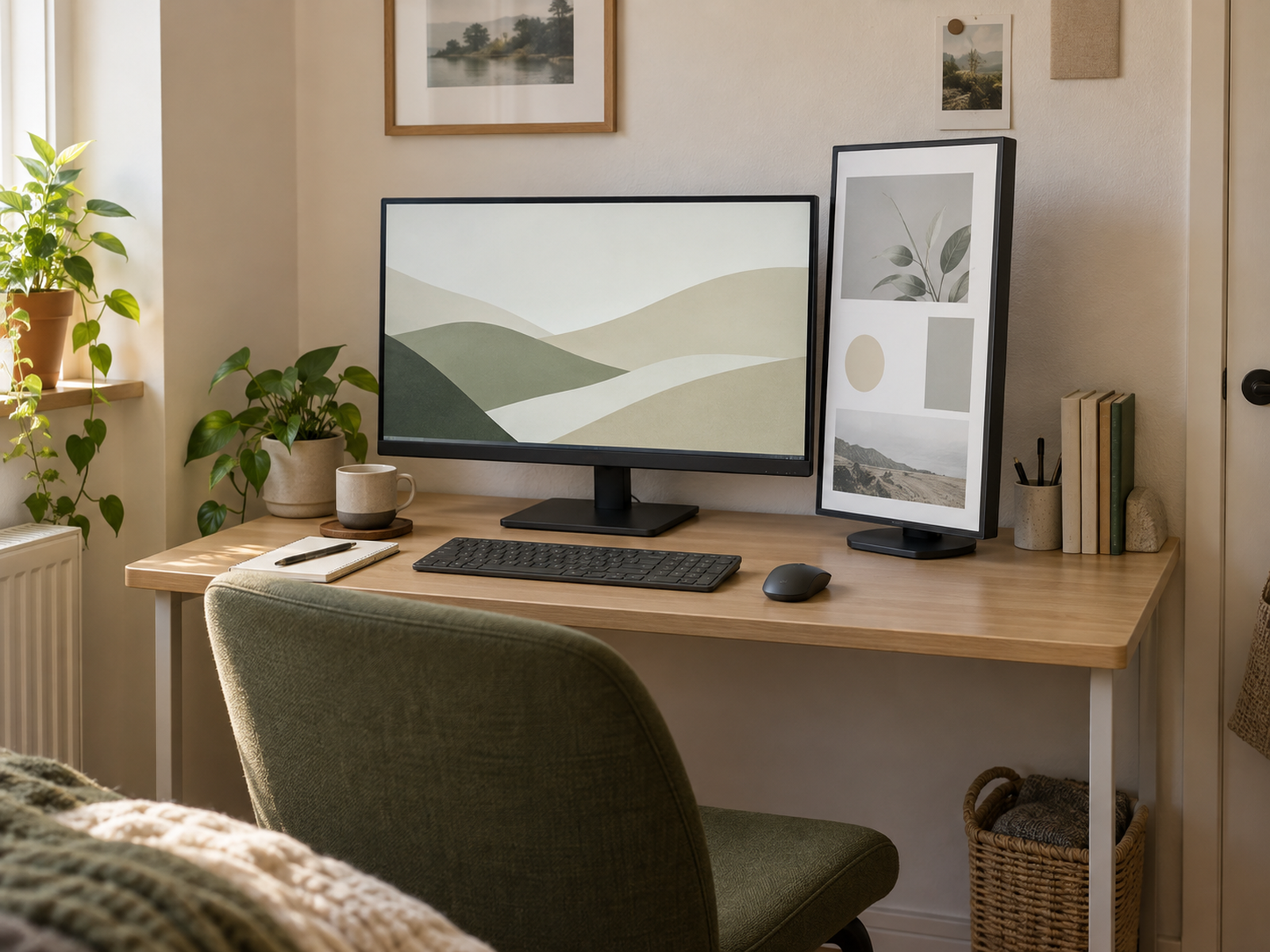
Portrait orientation can reduce horizontal span when the secondary monitor is used for long documents, chat, code, reference, or other vertically oriented content.
The trade is height. A portrait display can extend much farther upward than the same screen in landscape, so check whether the top of the display stays within a comfortable viewing zone for the actual user.
Keep the primary display centered. The portrait screen should remain a secondary side display rather than pulling the user’s torso toward one edge of the desk all day.
Do not rotate a monitor simply because the desk is narrow. If the actual applications work poorly in portrait or the resulting height is uncomfortable, the space saving does not improve the workstation.
06
Use Monitor Arms Only When the Desk and Displays Match
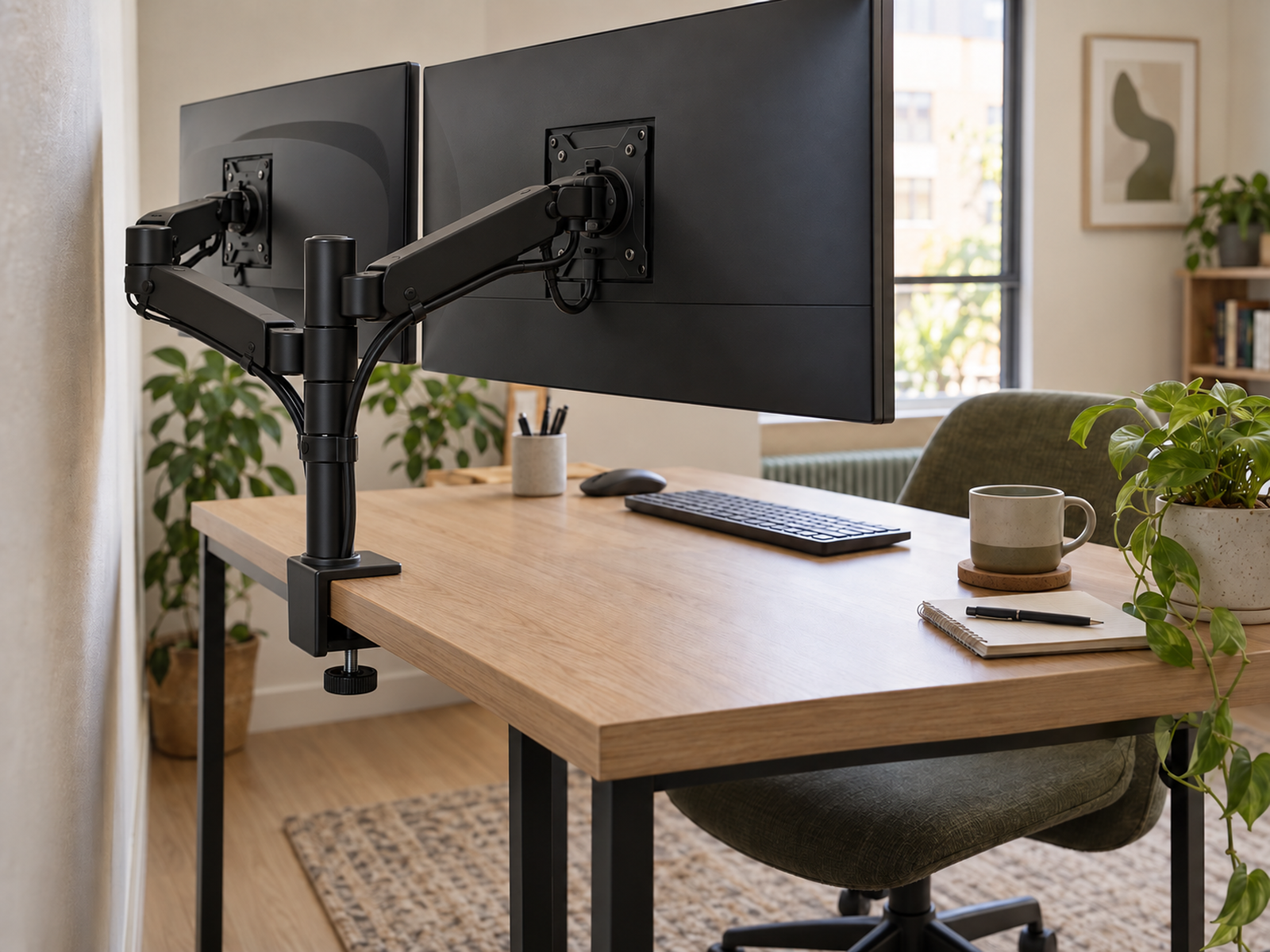
A dual monitor arm can recover substantial desk surface by removing two factory-stand footprints, but the mount becomes a new compatibility system rather than a universal fix.
Current manufacturer documentation shows why exact verification matters. Ergotron and Dell dual-monitor arms publish different per-arm weight limits, VESA or interface requirements, desk-thickness ranges, clamp or grommet conditions, and installation geometry.
Check the desktop itself. A thick-looking surface may use hollow-core, honeycomb, particleboard, composite, or another construction, so do not infer clamp suitability or structural strength from appearance or community advice.
The shallow-desk paradox is rear clearance. An articulated arm may help move the panels farther back, yet its elbows or joints can require free space behind a desk that already sits flush to the wall.
07
Stack a Secondary Screen Only When It Is Truly Secondary
Stacking can reduce horizontal width demand, but it moves the problem into vertical viewing. That makes usage frequency the deciding variable rather than desk width alone.
An upper display is most defensible when it is used for occasional status, monitoring, reference, or glance-oriented content. A screen used for half the workday should not be placed high simply to make the desk look compact.
OSHA’s general monitor guidance favors a top-of-screen position at or slightly below eye level, and its equal-use multi-monitor guidance favors adjacent screens with minimal head movement. Those principles make frequent upward viewing a reason to reconsider the stack.
If the stacked monitor forces the user to lift the chin repeatedly or breaks the primary-screen centerline, use a side placement, portrait secondary, smaller secondary display, or a different overall screen strategy instead.
Use / Skip
A Stacked Secondary Monitor
Use
Use it when the upper display is glance-oriented and the desk cannot spare more width
A stacked layout can be a practical width-saving branch when the primary display remains directly ahead at a comfortable height, the upper monitor is genuinely secondary, and the user only looks up briefly for status, reference, monitoring, or other low-frequency tasks.
Skip
Skip it when both screens deserve frequent eye-level use
Keep the displays beside each other or rethink the screen mix when the upper monitor is used continuously, requires repeated upward head movement, or forces the primary display lower or farther away than the normal work can tolerate.
08
Know When Two Monitors No Longer Fit the Desk
A dual-monitor setup has a real stop rule. If every viable layout pushes the screens too close, removes the keyboard or writing zone, places the primary display off-center, or requires an incompatible mount, the desk may not support two full displays well.
The next step does not have to be a larger desk. A full-size primary plus a smaller secondary, a laptop display used as the second screen, or a single display can be a better match when the work does not require two equal panels.
This research does not establish that one ultrawide or one large display is universally better than dual monitors. Workflow, software, window management, room footprint, and viewing geometry determine the better system.
If the only way to preserve two displays is to drill a new grommet hole, wall-mount the monitors, or replace the desk, treat that as an installation or furniture decision rather than a basic organization step.
Closing Decision
Make Two Screens Earn the Space They Take
A successful dual-monitor setup is not the most symmetrical or the most hardware-intensive arrangement. It keeps the main work directly ahead, limits repeated head movement, preserves a readable viewing distance, and leaves the desk surface usable for the tasks that still happen below the screens.
Decide screen roles first, measure actual panel and desk geometry, and treat every arm as a product-specific fit problem. If portrait, side-by-side, arm-mounted, or stacked layouts still cannot preserve both viewing comfort and the work surface, reduce the secondary display or return to one screen instead of forcing the desk past its useful capacity.
RELATED GUIDES
What to Read Next
NEXT GUIDE
How to Use a Monitor on a Shallow Desk Without Losing Usable Depth
Use this next if the dual-screen system exposes a more basic depth problem; that guide focuses on the single-monitor foundation—screen distance, stand footprint, and usable desk depth.
GUIDE
Where to Put a Webcam on a Small Desk With Dual Monitors
Use this if the two-screen geometry is working but camera placement is now off-center or visually awkward; that guide handles webcam position without changing the monitor-layout decision.
GUIDE
How to Manage Cables on a Small Desk Without Drilling
Use this after the monitor layout is locked; that guide focuses on cable routing and slack without letting cable cleanup determine the screen geometry.