
Small Desk Organization
How to Place a PC Tower Around a Small Desk Without Losing Work Surface
Protect the mouse, keyboard, and writing zone first, then measure the tower’s full operating footprint—not just the case body—so you can choose a floor, rolling-stand, side-support, or under-desk placement without blocking vents, crowding legroom, or exceeding a mount or desk limit.
In This Guide
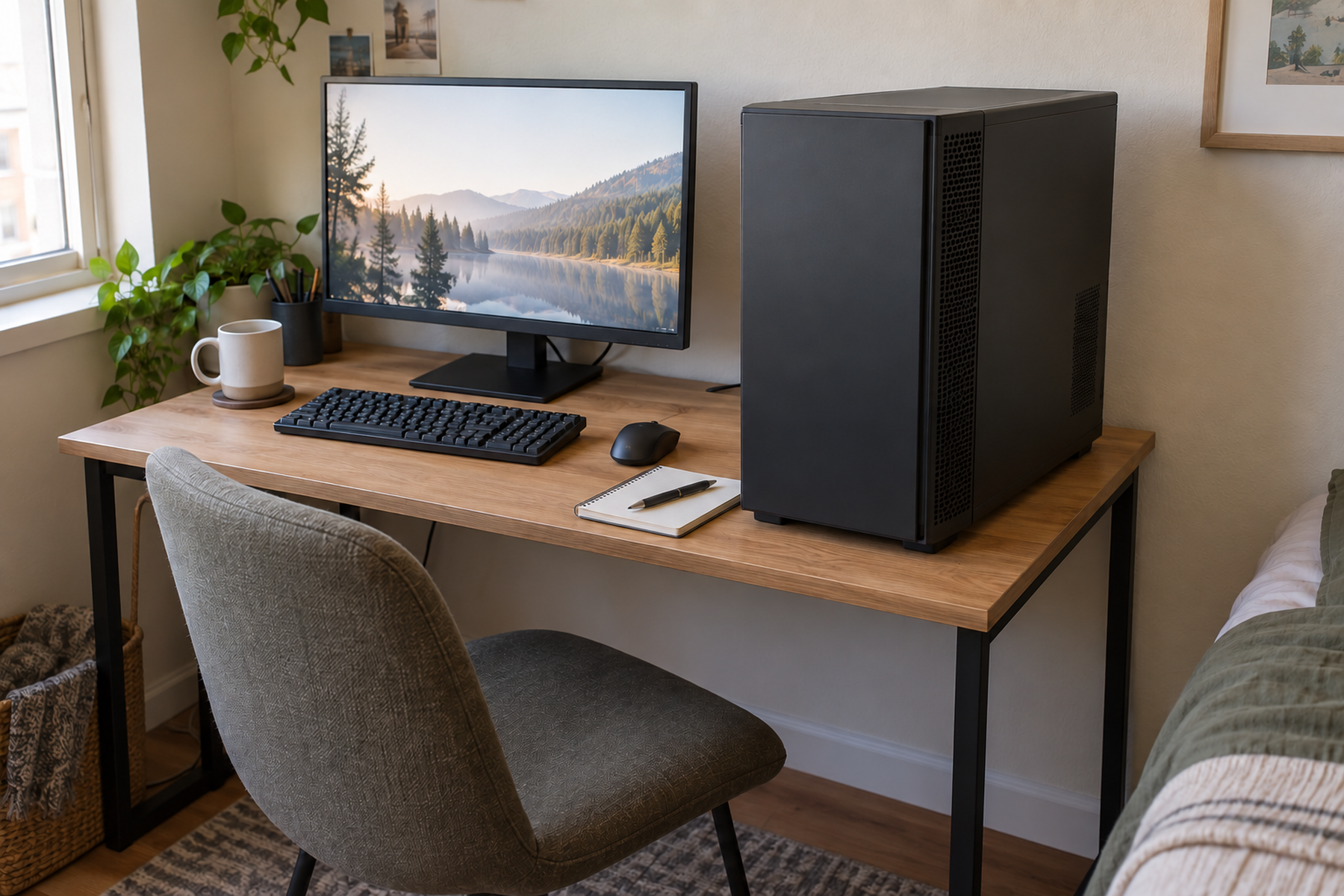
A PC tower can occupy more than a narrow rectangle on a small desk. Its real placement also has to leave room for case vents, projecting cables, port access, filters or panels, and the user’s hands when the computer needs to be cleaned or serviced.
That makes tower placement a space-planning problem rather than a simple desk-versus-floor debate. The best location is the one that gives the primary work surface back to the user while keeping the configured computer supported, ventilated, accessible, and outside the moving leg, chair, and walking zones.
Quick Answer
Choose the Tower Location by Work Space, Airflow, Load, and Access
01
Protect the work rectangle before protecting the tower’s display value
If the case is forcing the mouse, keyboard, monitor, or writing area into a worse position, treat the desktop footprint as a real cost even when you like seeing the PC on the desk.
02
Map vents, cables, filters, and panel access before choosing a new zone
The case body can fit while the operating footprint does not. Identify the exact intake and exhaust openings and preserve the access needed for ports, filters, cables, and maintenance.
03
Check configured PC weight—not empty case weight
A stand or under-desk mount must support the complete computer as built. Use a complete-system weight when documented or physically weigh the configured tower rather than relying on the empty chassis specification.
04
For a standing desk, decide whether the tower moves or stays fixed
A desk-mounted tower moves with the work surface; a floor or side stand stays in the room. That choice determines collision checks and how much cable travel the setup needs.
01
Protect the Active Work Zone First
Start with the part of the desk that has to remain usable every day: monitor position, keyboard reach, mouse travel, and any writing or notebook area. If the tower sits inside that active rectangle, measure how much useful width and depth it removes rather than judging the setup only by how clean it looks.
A current mid-tower can occupy a meaningful permanent footprint. NZXT’s H5 Flow is one example at roughly 8.86 inches wide by 16.93 inches deep. Those dimensions are not a universal tower size, but they show why a case can displace an entire mouse or writing zone on a compact desktop.
Keeping the tower visible can still be a valid preference. The decision changes only when that preference starts making the workstation harder to use. Aptly Small’s priority is the functioning desk, not the most minimal or most decorative battlestation.
02
Measure the Tower’s Operating Footprint
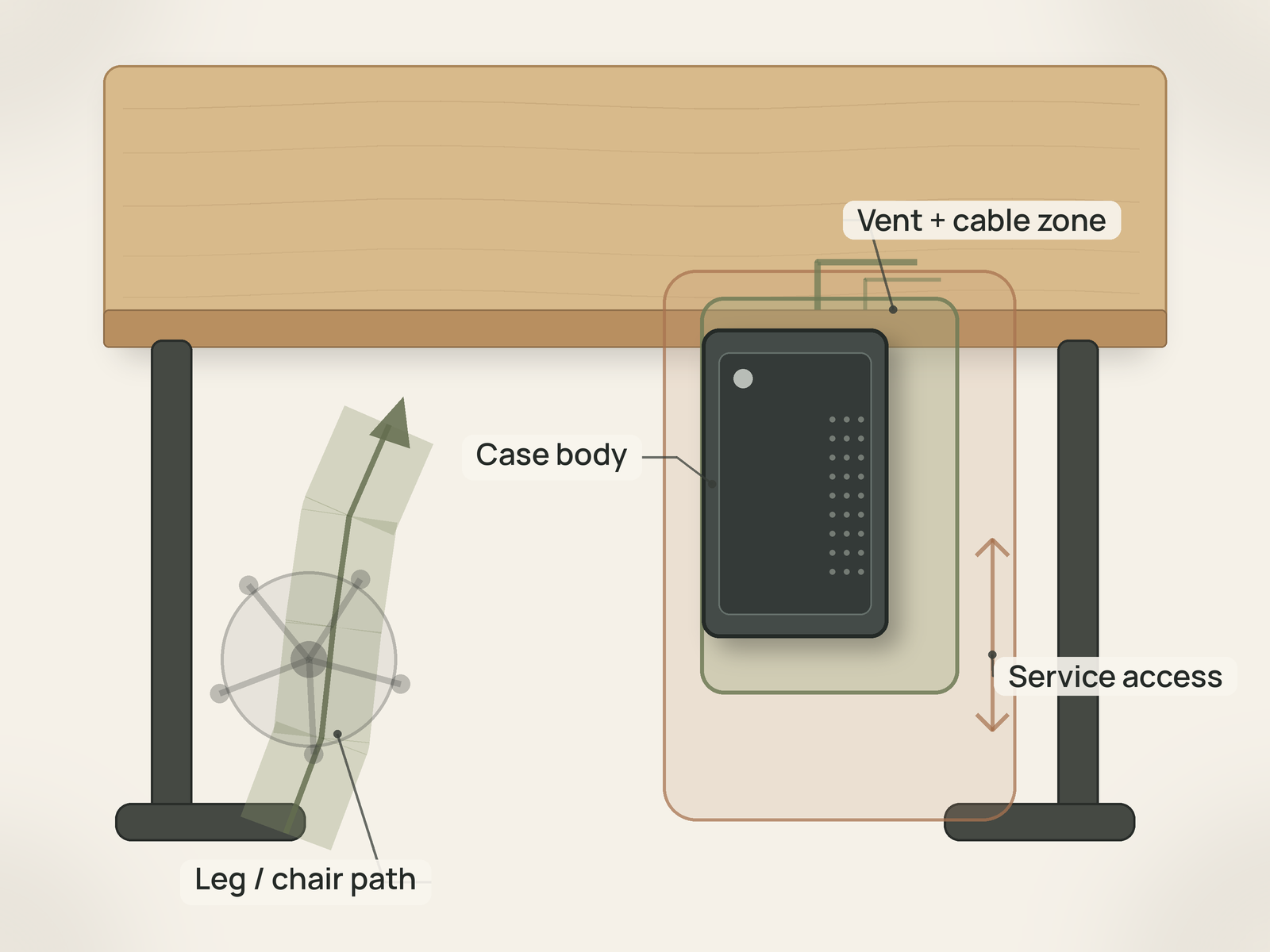
Measure the case width, depth, and height, then add the physical requirements that are easy to forget. Rear display, power, network, and audio cables can project beyond the case. Front ports may need hand clearance. A removable side panel or dust filter can require a clear direction of travel.
Next, identify the actual ventilation openings on the exact PC or case. ASUS desktop documentation gives the durable general rule: do not block chassis air vents and provide proper ventilation. The exact case design decides which surfaces matter, so do not substitute one universal wall or floor clearance for the manufacturer’s layout.
This is the tower’s operating footprint: case body + vent access + cable projection + service access. A location that accepts only the case body is not yet proven.
Measure / Check First
Before buying a stand or mount—or moving the tower into a tight floor zone—verify the complete computer and the host desk as one system.
Check the Tower, Support, and Movement Envelope First
01
Tower body plus operating footprint
Measure case width, depth, and height, then map vent openings, projecting cables, front-port reach, filter access, and any side-panel clearance the exact case requires.
02
Configured tower weight plus support rating
Use a complete-system weight when documented or physically weigh the configured PC. Compare that number with the exact stand, mount, shelf, or desk-accessory rating rather than the empty chassis weight.
03
Human and desk movement clearance
Check knees, feet, chair casters, desk frame, drawers, cable trays, control boxes, walking paths, and—on a standing desk—the tower and cable relationship at both minimum and maximum desk height.
If a placement fits the case body but blocks a vent, exceeds the support rating, occupies the user’s movement path, or removes practical service access, it has failed the placement test.
03
Use Floor Placement When the Zone Actually Works
Putting a PC on the floor is not automatically a bad setup. For some small desks, it is the fastest way to reclaim the entire tower footprint without buying hardware or modifying furniture.
The floor zone still has to pass the operating test. The case must sit level and stable, its real intake and exhaust openings must remain unobstructed, and the tower should stay outside the moving foot, chair-caster, and main walking paths. Thick carpet can be a problem for cases whose bottom ventilation depends on clear space, but that is a case-specific check rather than a universal ban on carpet.
Keep ports, filters, and the power switch practical to reach. A tower hidden so deeply under the desk that every cable change or filter cleaning becomes a crawl-through-the-frame task has traded surface space for repeated access friction.
Floor placement is strongest when the room has a genuine residual floor zone that the user does not need for knees, feet, chair movement, or another storage job.
04
Use a Rolling Stand When Direct Floor Contact Is the Problem
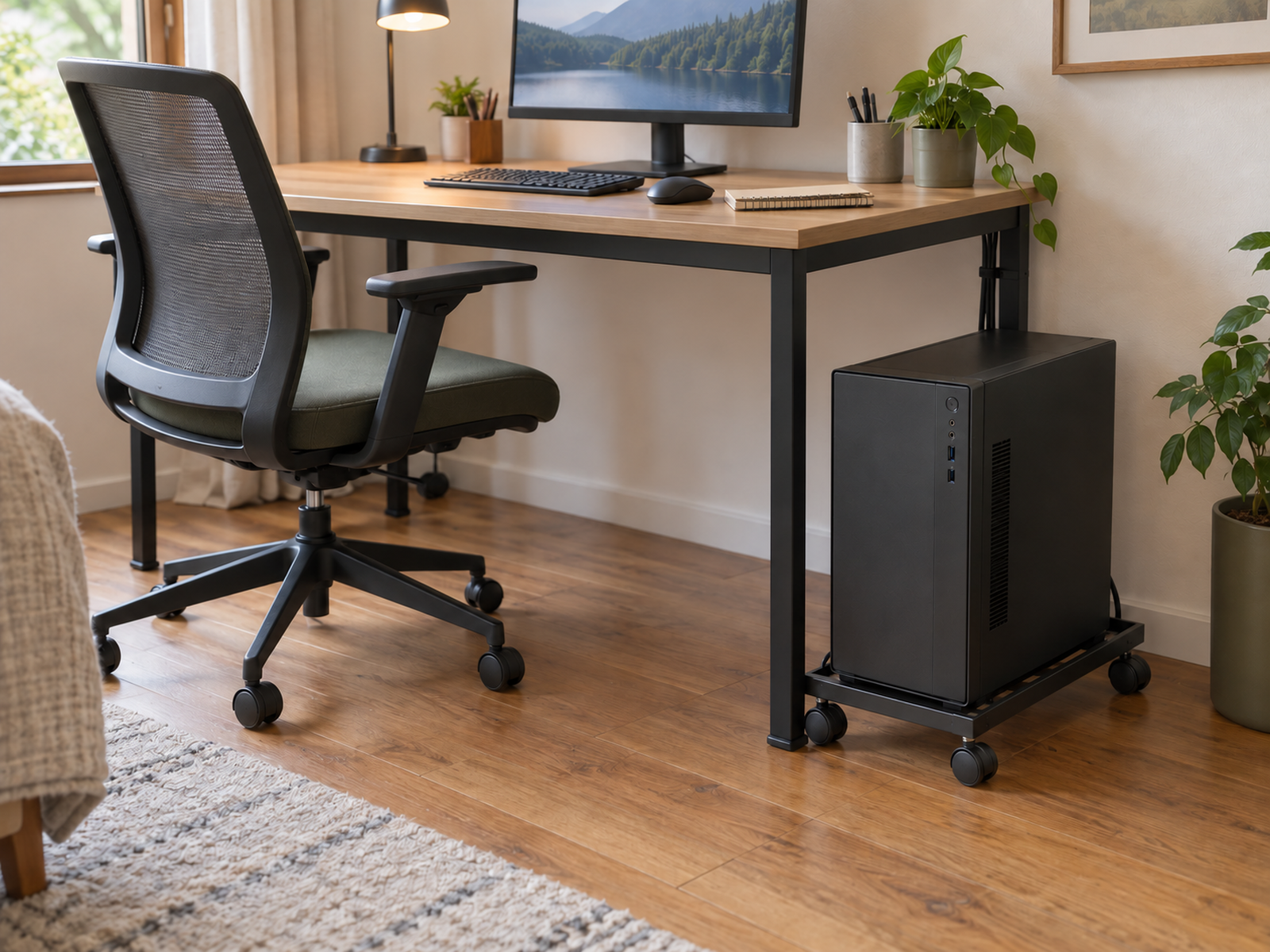
A rolling PC stand can keep the case elevated, make rear ports easier to reach, and let the tower move for cleaning without attaching anything to the desk or wall. That makes it one of the most reversible small-space solution classes.
Check the stand’s complete footprint as carefully as the tower. StarTech’s current CPUMOBILESTND, for example, adjusts for towers about 4.9 to 8.2 inches wide, supports up to 46.3 pounds, and occupies roughly a 10-inch-square floor area. A caddy can therefore be wider than the case it supports.
The stand also has to respect the case’s feet and vent layout. An open-frame design can preserve access around the chassis, but the exact case still determines whether a bottom or side intake is clear.
Use a rolling stand only where the caster base remains outside the chair and foot paths. If the tower is easier to clean but the stand is hit every time the user turns the chair, the floor zone is still wrong.
05
Use an Under-Desk Mount Only After Four Fit Checks
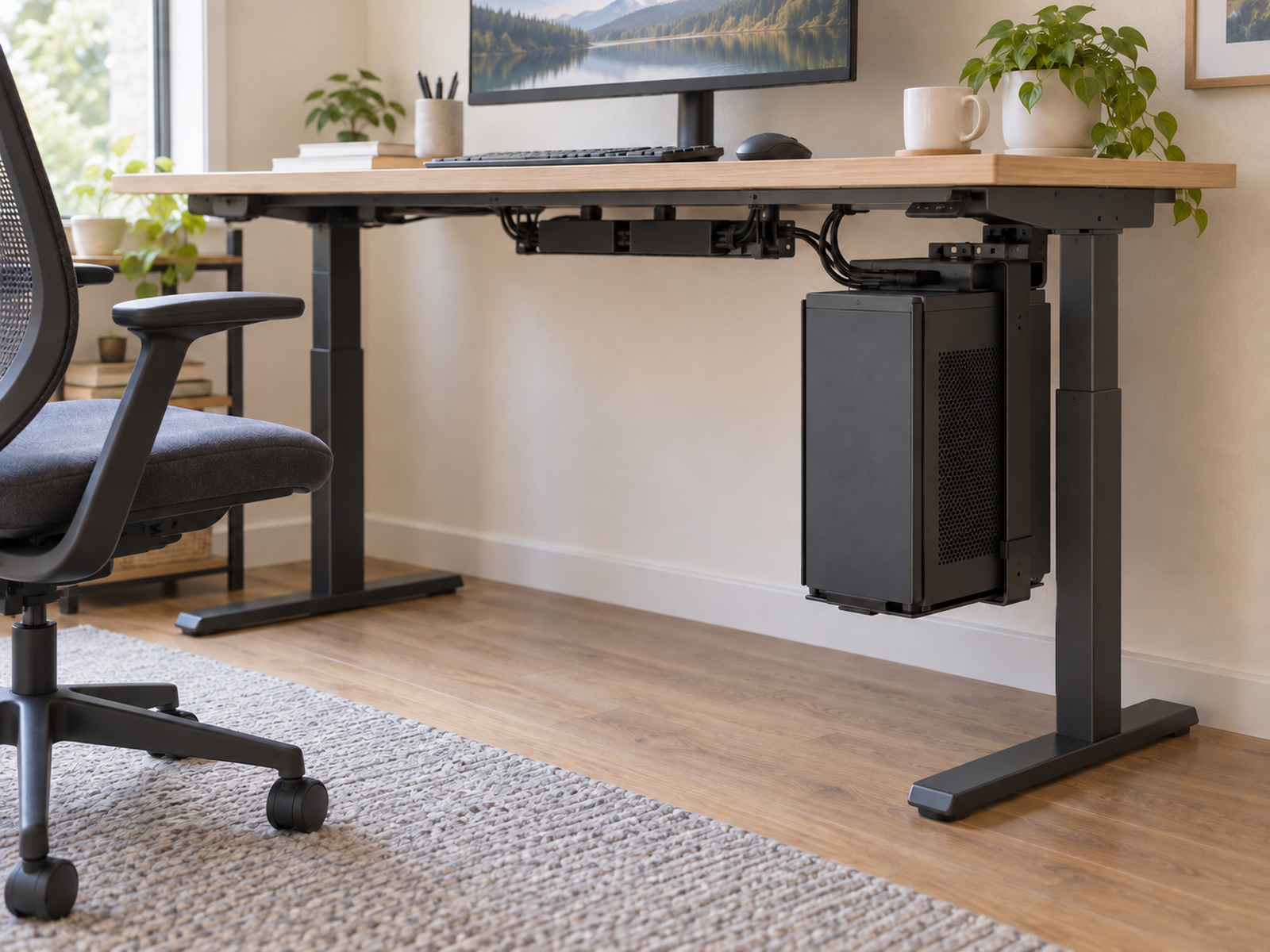
An under-desk mount can recover both the desktop and the direct floor zone, but it has the highest compatibility burden among the common renter-scale options. Treat it as a four-gate decision: tower dimensions, configured tower weight, desk attachment zone, and human or frame clearance.
Current mount specifications show how different the fit envelopes can be. UPLIFT lists a holder for towers about 3.75 to 8.25 inches wide and 12 to 20.5 inches high with a 50-pound maximum. Vari’s current mount fits a wider 5.5 to 10 inch range but has a 35-pound maximum and requires a desk or table at least 3/4 inch thick. Humanscale currently sells separate compact and full-size mount classes with materially different fit and load limits.
Do not use empty case weight as the mount number. The installed power supply, graphics card, cooler, drives, fans, and other components can add substantial weight. If a complete configured weight is not documented, physically weigh the tower before choosing the mount.
Finally, inspect the desk underside. Drawers, crossbars, control boxes, cable trays, monitor-arm hardware, thin or unsuitable desktop construction, and the user’s knees can all eliminate an otherwise compatible mount.
06
Separate Building-Friendly From Furniture-Friendly
An under-desk mount may avoid drilling into the apartment wall while still requiring screws or hardware in the desk. Those are two different renter decisions.
If the desk is user-owned, building-modification risk may be low, but desk warranty, material, and long-term damage still matter. If the desk belongs to the landlord or came with a furnished rental, attaching hardware can become a rental-property issue even though the wall remains untouched.
Floor stands and side supports avoid both wall and desk modification, which makes them mechanically simpler to reverse. Wall-mounted PC systems sit at the opposite end of the spectrum and should be treated as an installation-heavy, permission-dependent branch rather than a default organization fix.
07
Decide Whether the Tower Moves With a Standing Desk
A sit-stand desk turns tower placement into a motion system. If the tower sits on the desktop or in a compatible mount attached to the moving desktop, the computer rises and lowers with the monitor and peripherals. UPLIFT explicitly designs its holder around that moving relationship.
The benefit is simpler relative cable movement between the tower and desk-mounted equipment. The cost is that the tower and mount become part of the desk’s moving load and must clear the frame, floor, control box, knees, and any other underside hardware at both minimum and maximum desk height.
If the tower stays on a floor stand or independent side support, its weight stays off the lifting desk. In exchange, every cable between the fixed tower and the moving desktop needs enough slack and routing freedom for the desk’s full travel without entering chair or foot space.
Test the complete setup at both height extremes. A tower location validated only while seated is not a standing-desk solution.
08
Use a Side Support Only When Room Width Is Cheaper Than Legroom
A low side stand or side table can keep the tower near desk height while leaving the primary desktop and knee zone clear. It can also make ports and side-panel access easier than a deep under-desk position.
The trade is total workstation width. A small table that looks harmless in isolation can narrow a walkway, block a drawer, interfere with a door, or make the desk wall too wide for the room.
Verify the support surface size and load rating for the complete tower. Decorative furniture is not automatically a PC stand, and visual sturdiness is not a load specification.
This option works best when the room has spare side width but very little under-desk legroom. If both resources are scarce, a side support simply moves the conflict sideways.
09
Keep Ports, Filters, and Panels Serviceable
A successful tower location should survive ordinary maintenance. Reach the power switch and the ports you use regularly, confirm that rear cables can be connected without removing the entire desk setup, and check that any filters or side panels you actually service can still be removed.
Do one deliberate access test before finalizing the location: disconnect and reconnect a common rear cable, remove a filter if the case design allows it, and verify that the case can be moved out without dismantling unrelated storage.
Avoid enclosed cabinets or tightly boxed-in shelves simply because they hide the computer. The research package does not establish a universal thermal design for enclosed furniture, and blocking or restricting chassis ventilation conflicts with the verified manufacturer boundary.
If every viable placement still consumes too much desk, floor, or room space, a smaller PC case can be a legitimate final branch—but that is a hardware project with its own component, cooling, and compatibility research, not the first organization move.
Closing Decision
Give the Desk Back to the User Without Hiding the PC From Its Own Needs
A PC tower does not need to live on the desktop simply because floor placement has a bad reputation, and it does not need to disappear under the desk simply because a mount exists. Start with the work surface, then choose the lowest-cost spatial zone that can support the configured tower while preserving ventilation, access, and human clearance.
For many renters, a valid floor zone or rolling stand will be the most reversible answer. An under-desk mount can recover more space when the case, desk, load, and legroom all pass their checks. On a standing desk, decide first whether the tower moves or stays fixed. The best placement is the one that keeps the desk usable and the computer easy to live with.
RELATED GUIDES
What to Read Next
NEXT GUIDE
How to Manage Cables on a Small Desk Without Drilling
Use this next once the tower location is fixed, especially if a floor or side placement creates new power, display, network, or sit-stand cable travel that needs a renter-friendly routing plan.
GUIDE
How to Move a Printer Off a Small Desk Without Losing Access
Use this if another large device is still consuming the active work surface after the PC tower has been relocated; the printer guide handles a different equipment footprint without repeating the tower’s airflow and load decisions.